Evaluating the Qualification Envelope
With the pre-evaluation stage completed, the project's procurement authority can open the Qualification Envelope and evaluate the supplier responses to the qualification questions. If there is more than one member assigned to the Qualification panel, each member can provide a response after the envelope has been opened.
-
Click Open Qualification Responses

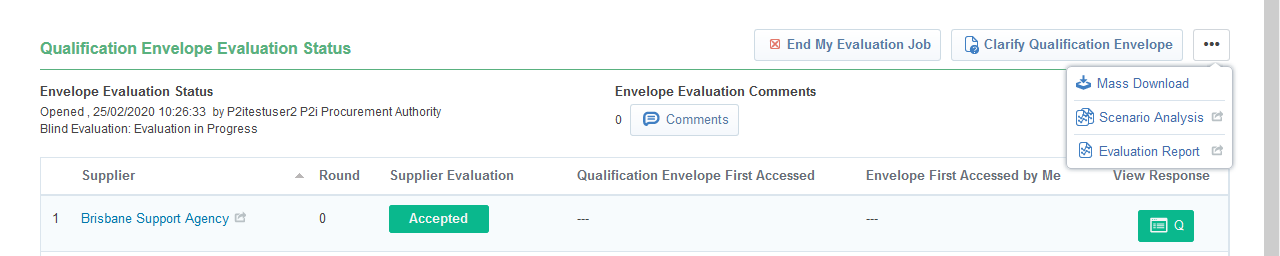
Note The Qualification Envelope Evaluation Status displays all Suppliers. The project's procurement authority can use the Clarify Qualification Envelope button to seek clarification from Suppliers on their qualification responses. The procurement authority can also download all Supplier attachments from the qualification responses. This can be done by clicking the ... button and selecting Mass Download. The procurement authority can also click the Comments button to add comments regarding the evaluation of the qualification envelope.
-
Click the Q box under View Response to begin reviewing the Qualification Envelope for a supplier.

Evaluating the suppliers
There are two methods an evaluator can use in P2i to evaluate supplier responses. The first is to click Enter My Evaluation, add a score (this is only required for the Technical Envelope) and comment for each question and then move to the next supplier. The second method is to click a question and then add a score and comment for each supplier and move to the next question.
Once all questions have been evaluated the procurement authority can accept or reject the supplier's response and add official notes on the acceptance or rejection.
Evaluating each supplier
-
Click Enter My Evaluation.
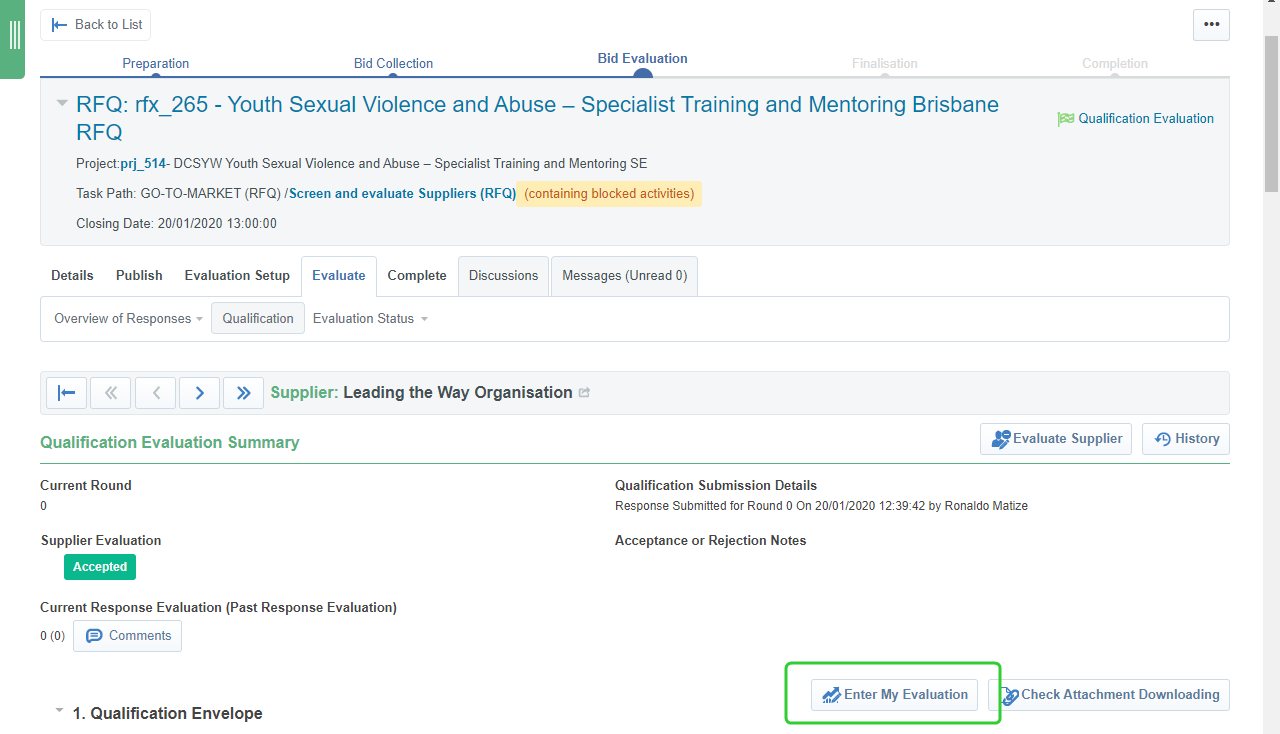
Tip Click Check Attachment Downloading to view the list of supplier attachments, all attachment fields and the buyer downloading status. Clicking the attachment will download the document. Click Back to Current Response to return to the supplier response.
 .
. -
Click the Edit Mode icon to respond to each question.

-
Add Comments and an Attachment (if required).
-
Click Save and Next to move to the next question.
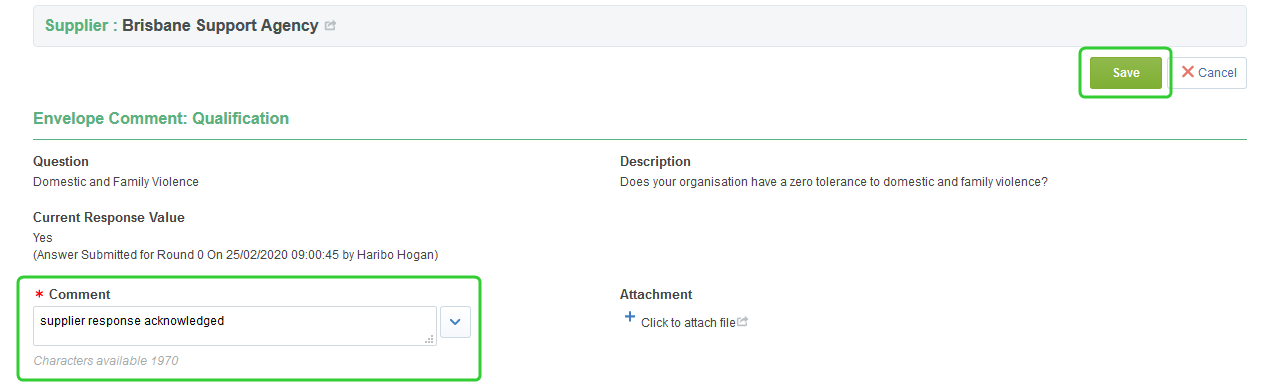
Note The Envelope Comment window display the current Supplier at the top, the Question and Description below. The Current Response Value holds the Supplier's response to the question. Comments are mandatory as indicated by the * next to the Comment field.
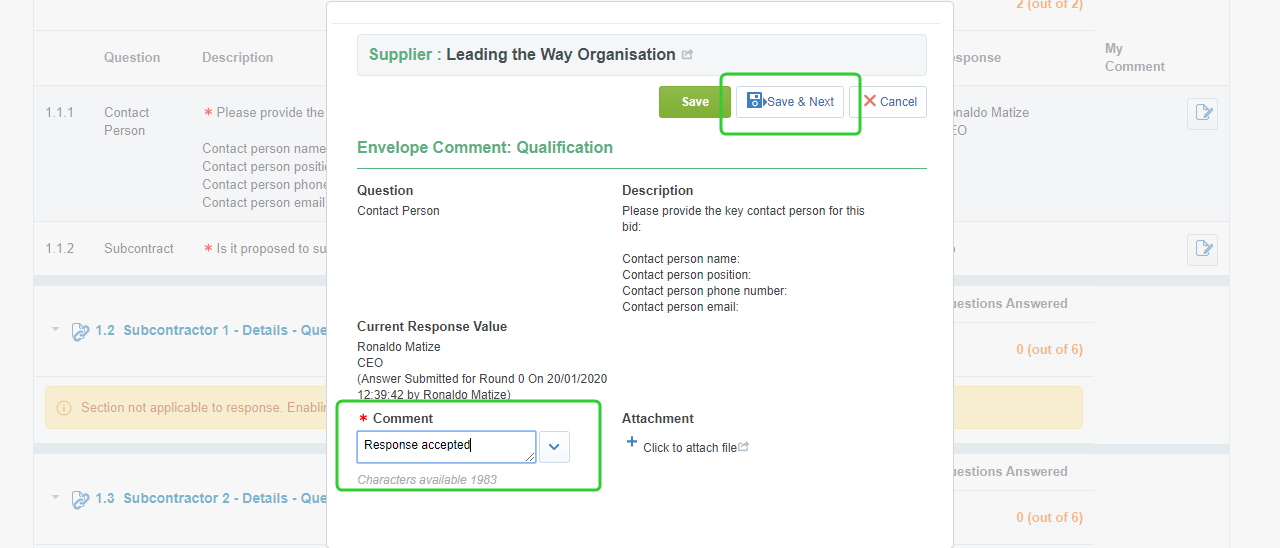
Tip If you click Save the evaluation response window will close.
-
Provide a comment for each response. When you have commented on all qualification questions the window will close.
-
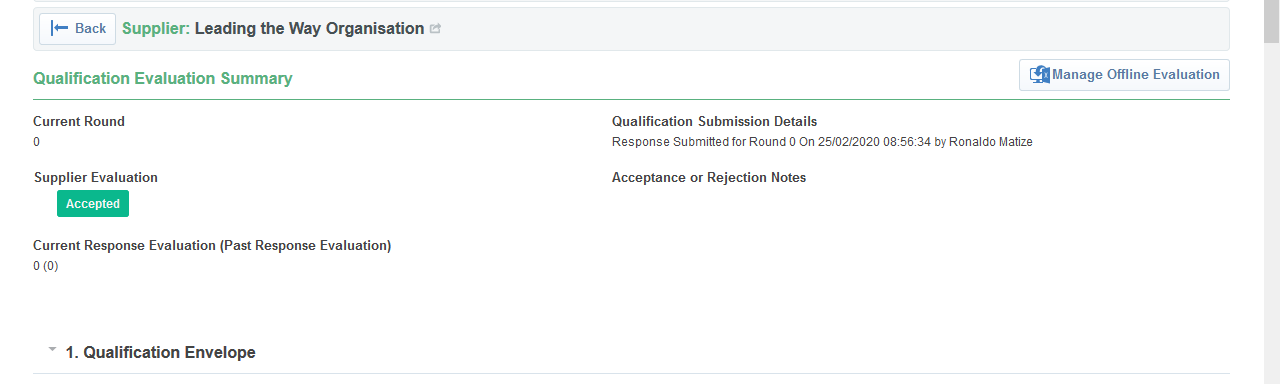
Scroll to the top and click the Back button.
-
Click
 to display the next supplier's response.
 -
Repeat steps 3 to 7 until all supplier responses have been evaluated.
-
Click
 once you have completed the evaluation for the last supplier.
Evaluating each question
-
Scroll down and click the first question you want to evaluate.

-
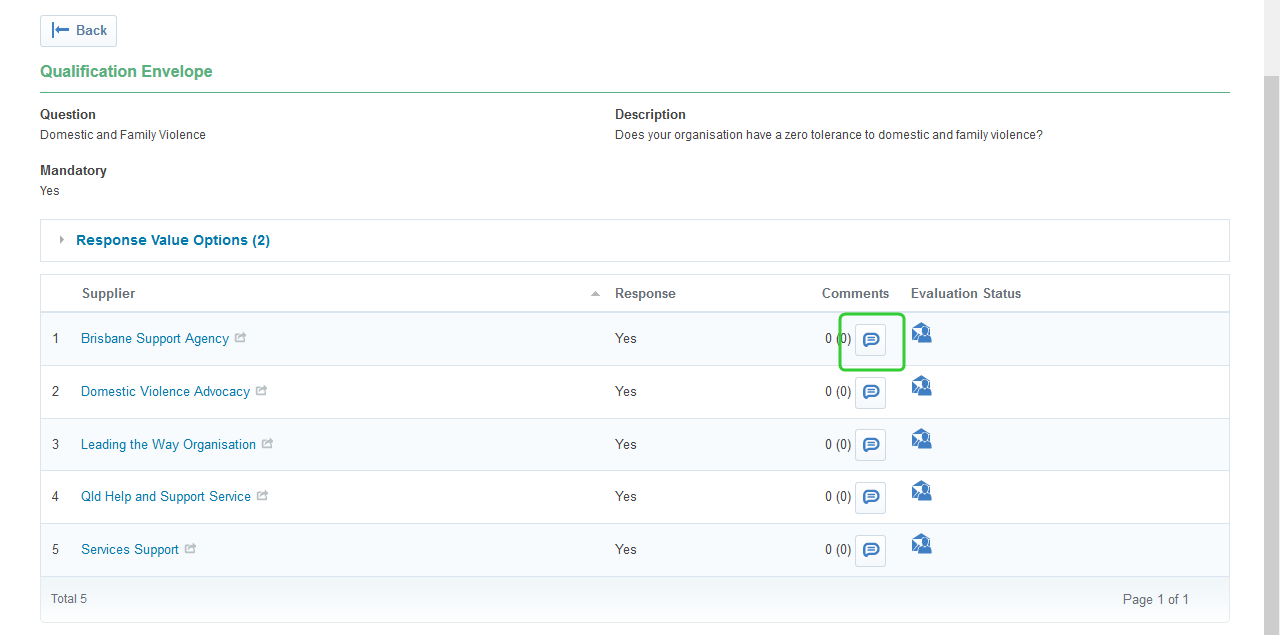
Click the Comments icon next to the first supplier.
-
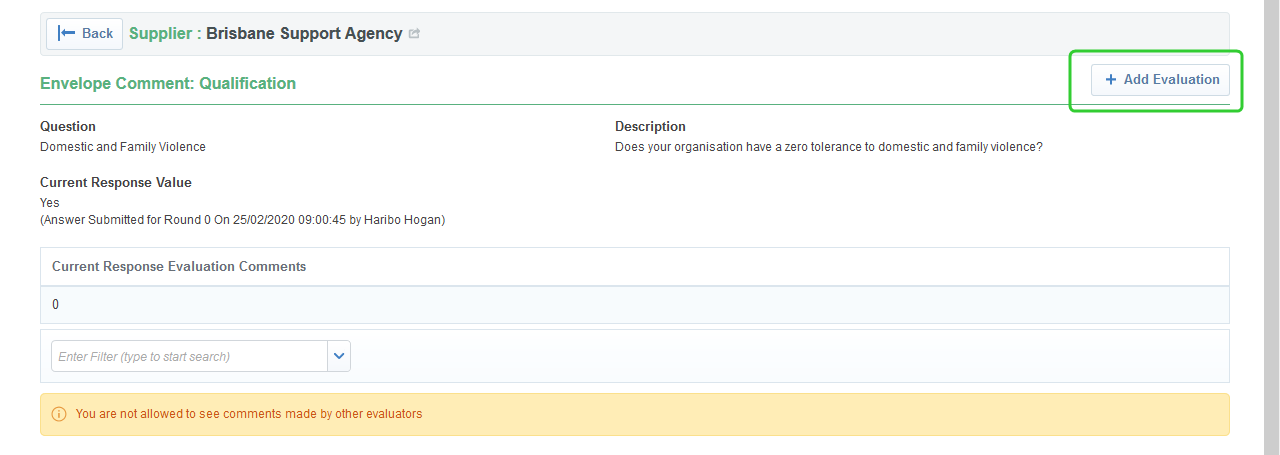
Click Add Evaluation.
-
Enter a Comment and click Save.
-
Click Back.

-
Repeat steps 2 to 5 to evaluate the remaining supplier's response to the selected question and click Back .

-
Repeat steps 1 to 6 for each question to be evaluated for the qualification envelope.
Accepting or Rejecting the Supplier
Once all suppliers' questions have been evaluated, the procurement asuthority can Accept or Reject the supplier and add supporting notes.
Warning Please check with your Department's procurement services team for guidance on using this feature in P2i.
-
Click the Evaluate Supplier button.

-
Select Accepted or Rejected and enter Acceptance or Rejection Notes and click Save.

-
Repeat this for each Supplier.
-
Click
to return to the Qualification Envelope Evaluation Status screen.
Adding a comment against each Supplier
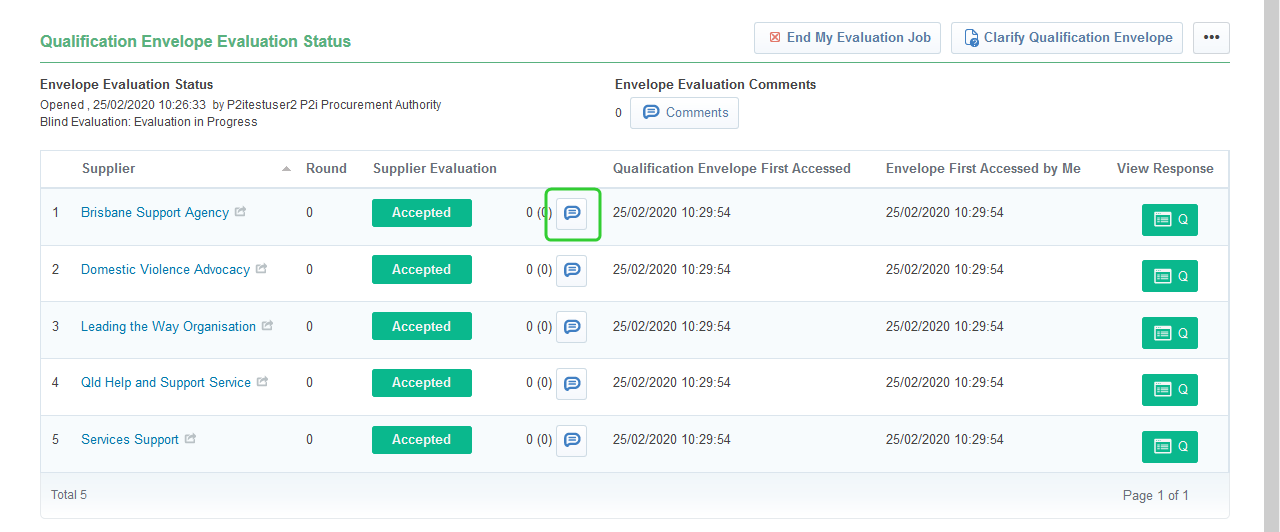
Returning to the Qualification Envelope Evaluation Status screen, the project's procurement authority can add comments against the Suppliers. This allows them to make recommendations to the Panel Chair and Panel Members regarding the supplier's responses.
Tip The procurement authority can also add comments regarding the overall evaluation of the Qualification Envelope.
-
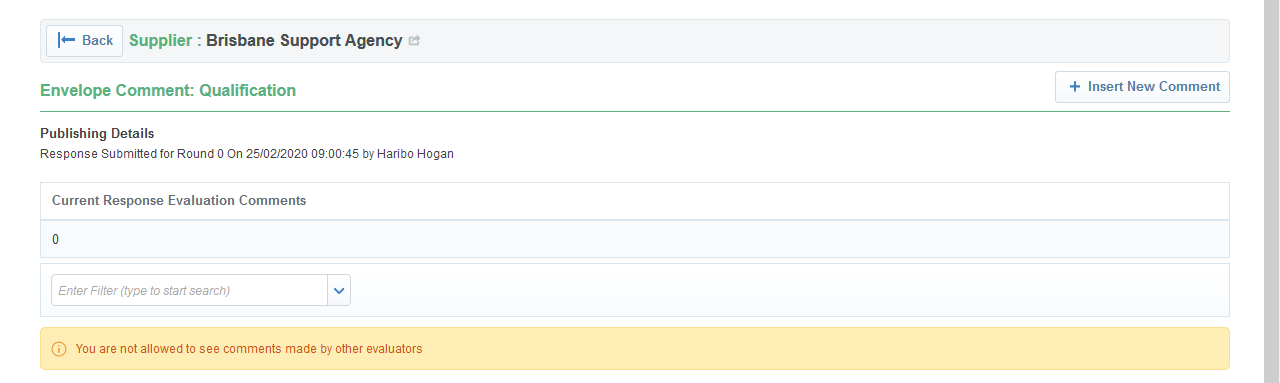
Click the Comment icon next to a supplier
-
Click Insert New Comment.
-
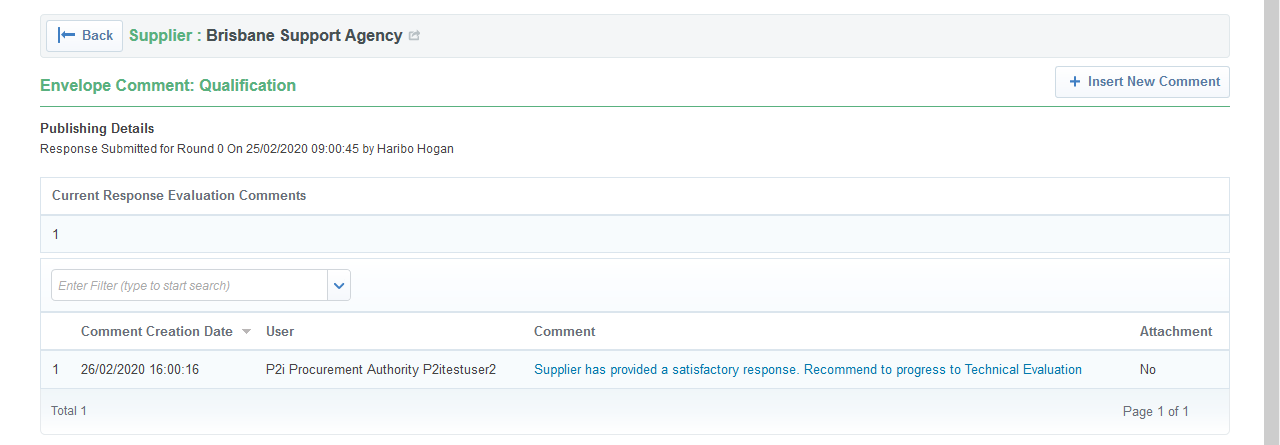
Enter the a Comment and click Save.

-
Click the Back button.
-
Repeat the steps to add comments for each supplier.
Ending the Evaluation Job
Once the project's procurement authority has completed their evaluation of the qualification envelope, they can end their evaluation job.
-
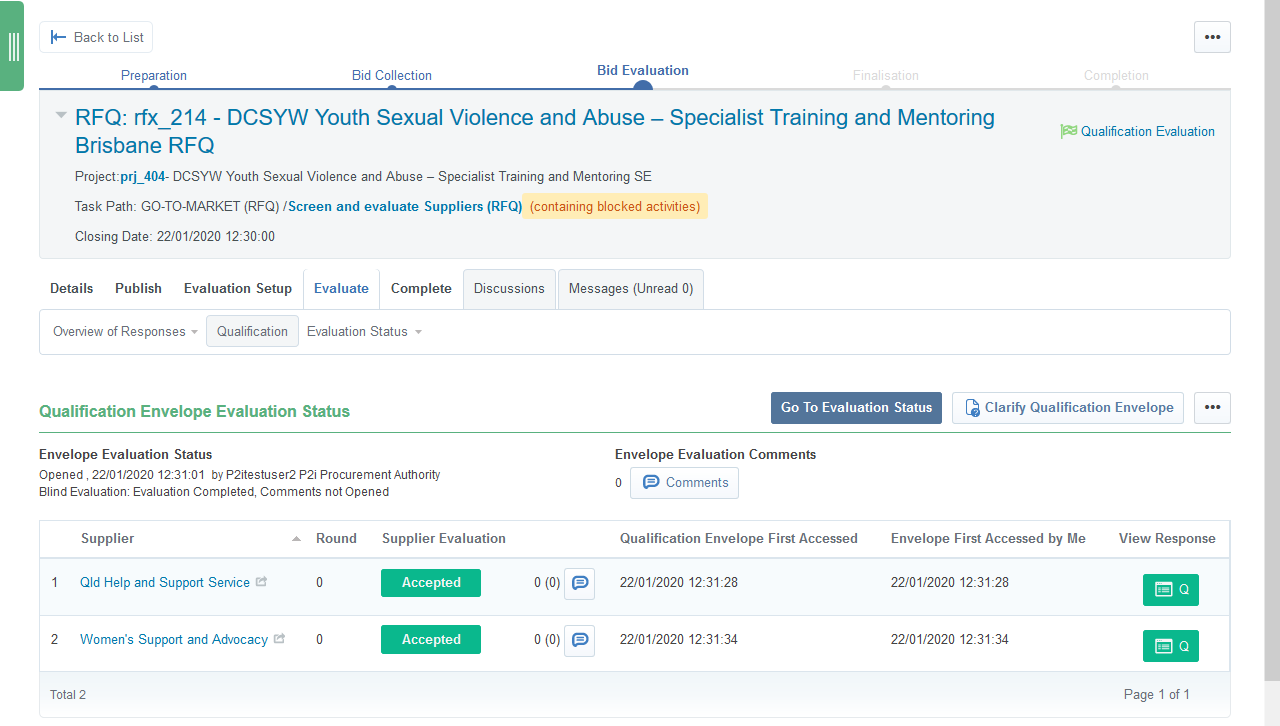
Click End My Evaluation Job

-
Click Go To Evaluation Status.
-
Click Open Evaluation Comments.
Tip If Blind Evaluation was selected as part of the RFQ setup, you will need to Open Evaluation Comments to review the comments made by other panel members as part of your moderation of suppliers. If Always Visible was selected then click End My Evaluation Job.

-
Click Ok to confirm.

-
Click Qualification.

-
Click the Q box under View Response to review comments for each supplier. Once all responses have been reviewed, return to the Qualification Envelope Evaluation Status screen.
-
Click End My Evaluation Job.
Warning All panel members need to end their evaluation jobs.

-
Click OK to confirm
-
Click Freeze Qualification Evaluation.
Note Only the project's procurement authority can freeze the qualification envelope.

-
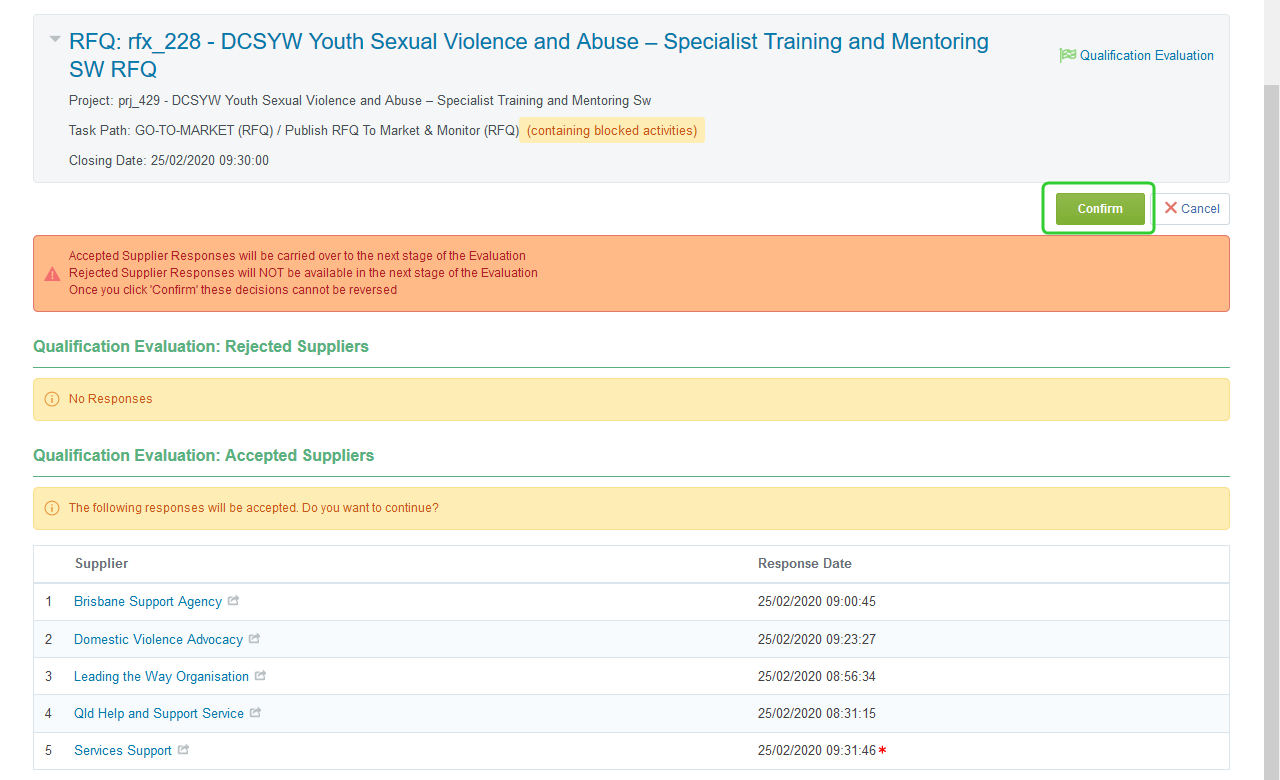
Click Confirm
Warning
Accepted Supplier Responses will be carried over to the Evaluation process.
Rejected Supplier Responses will NO longer be available for Evaluation.Once you click 'Confirm' these decisions cannot be reversed.
Note The project's Sourcing Lead (P2i Senior User or P2i regional Manager) can open the technical responses. As a procurement authority, click cancel when prompted to start the Technical Evaluation. The Evaluation Chair and Panel members assigned to the technical evaluation group can now access the technical envelope to provide their evaluations. Refer to the topic, Evaluating the Technical Envelope.